
Paint Like An Impressionist in Minutes
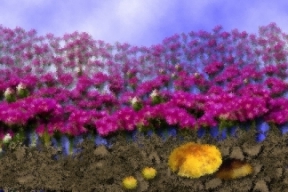
Field of Flowers
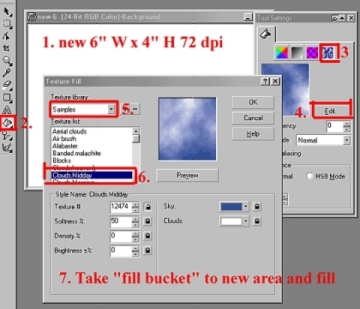
Sample1.
Create a new image, white background, width of 6.00" X height of 4.0" high 72dpi. Select, "fill bucket" from the tool bar, by double clicking. To pull the "Texture Fill and Texture Library" select "Samples" and from "Texture List" pick "Cloudy Midday". Then take the "fill bucket" to the new image and fill.
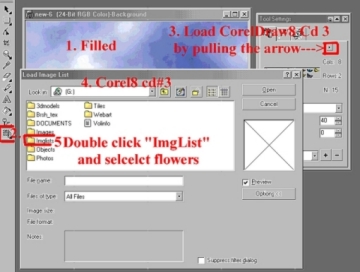
Sample 2.
Put your CorelDraw8 PhotoPaint CD#3 (as shown in sample1.) and open "Flower File" from "ImgList" on the CD and select "Flwr000."
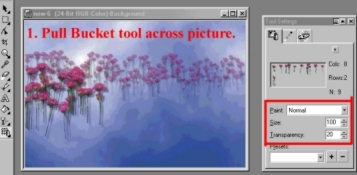
Sample3.
Set your spray can size to 50 with a 50 transparency. Begin about ¼ of the way down your picture. Pull the spray can tool across the picture and back again. The small flower and transparency gives you perspective. The flower setting size is 100 X 20 transparency. Again, begin below the painted flower and again, pull the spray can tool across the page two to three time. The third group of flowers is size 200 X 0 Transparency. Remember, you can always go "edit-undo special-undo list" and highlight and undo whatever you do not like. Again, I loaded the "ImgList-Nature-Natr000" is size 200 X 0 Transparency, then I used "Natr002" is size 100 X 0 Transparency and completed the painting. I then selected "Effects-Artistic- Impressionist". Then set the horizontal and vertical values on 4 and click "okay". You now have an impressionist painting in minutes. Selected "Effects-Artistic- Impressionist". Then set the horizontal and vertical values on 4 and click "okay". You now have an impressionist painting in minutes. Give it a try. Experiment with different sprays, fills and settings. If you try this procedure, please send it to me. I would love to see your efforts.
 Email at: LuLu5156@aol.com
Or at Art Net:lulu@art.net
Click on Buttons Below to Go There:
|
|
|
|
|





Best Experienced With Internet Explorer

This Page Was Created Using Corel Webmaster Suite